Gostim2
Gostim2 is a multimedia stimulus delivery system designed for experimental psychology and cognitive neuroscience tasks.
- HTML version of this document
- Github repository of this project
- Installers for various platforms
- User Guide (also available as PDF)
Building and running an experiment with gostim2 does not require any programming knowledge as the experimental paradigm is fully described in a table that describes the stimuli and their timing. Indeed, Gostim2 is meant for expriments where the stimuli are presented according to a fixed schedule, known in advance. Although all keypress events are saved with timestamps, the behavior of the program cannot be modified in real-time, e.g., it is not possible to provide real-time feedback. Gostim2 has no notion of “trial”, only stimuli and events. This approach is well suited for fMRI/MEG/EEG experiments with fixed stimulus presentation schedules.
Remark: For general purpose, flexible programs for building psychology experiments, you can check goxpyriment (in Go), or expyriment (in Python).
Christophe Pallier Feb. 2026
Here is a preview of the graphical interface (see below for explanations)
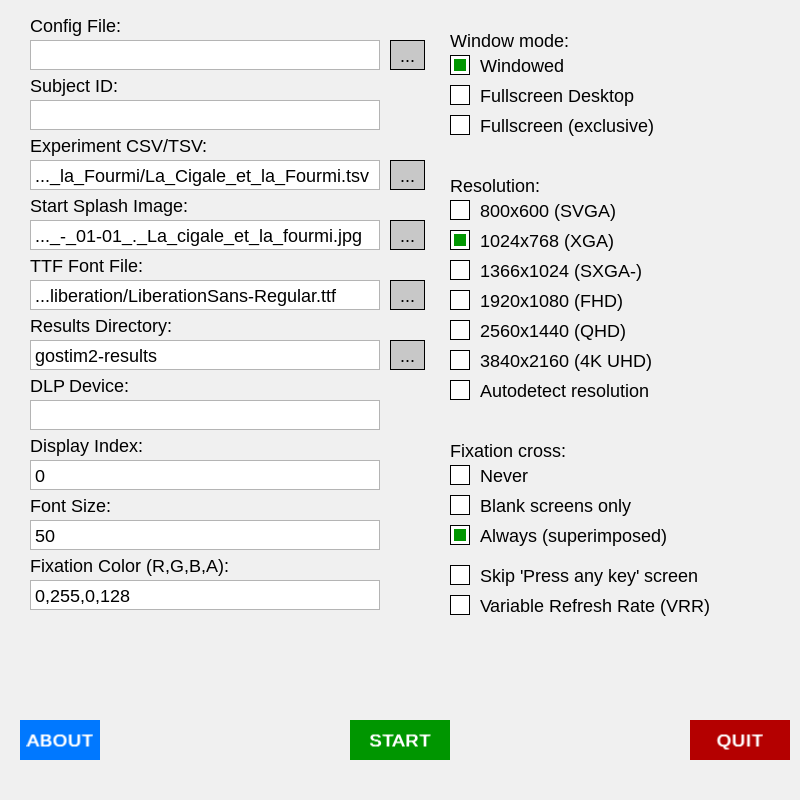
Table of Contents
Usage
There are two apps: a command line one (gostim2) and a graphical one (gostim2-gui).
Quick Start
- Launch the GUI: Run
./gostim2-gui. - Configure:
- Click “…“ next to Experiment CSV and select the csv file in
examples/Visual_Categories_Localizer_Minye_Zhan_(demo). - The stimuli directory is detected automatically: the program searches for a
stimuli/orassets/subfolder next to the CSV file.
- Click “…“ next to Experiment CSV and select the csv file in
- Start: Click the green START button.
- Interact: Press any key when the “Press any key to start” message appears.
- Exit: Press Escape at any time to interrupt the experiment.
GUI Mode
The GUI provides an interactive setup window to configure file paths, resolution, and experimental options. Settings are automatically cached for the next session.
Resolution: Choose a fixed resolution from the list, or check Autodetect resolution to use your monitor’s native resolution automatically. This setting is independent of the window mode.
Window mode (three mutually exclusive options):
- Windowed — standard window at the chosen resolution.
- Fullscreen Desktop — borderless fullscreen at the desktop resolution, with the OS compositor still active. The safest option; recommended for everyday use.
- Fullscreen (exclusive) — takes exclusive control of the display and bypasses the OS compositor. Minimises latency and prevents compositor-induced frame drops. Recommended for EEG/MEG/fMRI recordings. Note: this mode can crash on some systems or configurations.
CLI Mode
For automated or console-only environments:
./gostim2 -csv experiment.csv [options]
Common Options:
-csv/-tsv: Path to the stimulus CSV or TSV file (required).-results-dir: Directory where result files are saved (default:gostim2-results). Note: If a relative path is provided, it is resolved relative to the directory of the CSV file.-stimuli-dir/-assets: Directory containing image and sound assets. If omitted, the program automatically searches for astimuli/orassets/folder in the same directory as the CSV file.-res: Screen resolution (e.g.,1920x1080orAutodetectto use the native resolution).-font: Path to a TTF font file.-fullscreen: Run in exclusive fullscreen mode (bypasses OS compositor).-fullscreen-desktop: Run in fullscreen desktop mode (borderless, compositor active).-display: Index of the display to use (default:0).-dlp: Serial device path for DLP-IO8-G triggers (e.g.,/dev/ttyUSB0).
Results Management
By default, gostim2 saves a timestamped TSV file containing the event log in a folder named gostim2-results.
To ensure experiments are portable and organized, the results directory is always resolved relative to the location of your CSV file (unless an absolute path is specified).
For example:
- Running
gostim2 -csv study1/run1.csvwill save results tostudy1/gostim2-results/. - Running
gostim2 -csv study1/run1.csv -results-dir datawill save results tostudy1/data/. - Running
gostim2 -csv study1/run1.csv -results-dir ""will save the results file directly instudy1/.
Linux Performance Note
To minimize video latencies on Linux, you can run the CLI version from a TTY console (e.g., Ctrl-Alt-F3) after stopping the display manager (e.g., systemctl stop gdm). This allows the app to bypass Wayland/X11 and use the Direct Rendering Manager (DRM) directly.
Experiment Configuration (CSV)
The stimuli scehdule is described in a table saved as a CSV or TSV file. This type of file can be created and edited with Spreadsheet software like LibreOffice Calc or Excel (see https://ec.europa.eu/eurostat/web/user-guides/data-browser/download-data/tsv-excel) or even a text file editor.
The CSV or TSV file given as input to gostim2 must include at least these four columns in its header: onset_time, duration, type, and stimuli. Extra columns (e.g. experimental_condition) are allowed and will be preserved in the output log.
Toy Example (experiment.csv):
onset_time,duration,type,stimuli
1000,500,IMAGE,body01.png
2000,300,IMAGE_STREAM,face01.png:200:100~face02.png:200:100~face12.png:200:100
3000,500,TEXT,Hello !
4000,2000,BOX,Please press\nany key
7000,1,SOUND,sound02.wav
Stimulus Types
- IMAGE / SOUND / TEXT: Standard single-item stimuli.
- BOX: Displays multiline text centered on the screen. Use
\nfor literal line breaks within thestimulistring. - IMAGE_STREAM: Displays a sequence of images in rapid succession.
- The
stimulicolumn contains filenames separated by~. - Timing (Optional): Each item can use the format
filename:duration:gap.duration: Time in ms to show the image.gap: Time in ms to show a blank screen (or fixation cross) after the image.
- If timing is omitted, the value from the
durationcolumn is used as the frame duration with a 0ms gap.
- The
- TEXT_STREAM: Displays a sequence of text strings in rapid succession. Supports the same
:duration:gaptiming format. - SOUND_STREAM: Plays a sequence of sound files. Supports the same
:duration:gapformat, wheredurationis the SOA (Stimulus Onset Asynchrony).
Notes on Timing:
- For
SOUNDtypes, thedurationcolumn is required but the sound will play until completion (use1or any placeholder value). - All timestamps in the CSV and output logs are in milliseconds.
Features
- Precise Timing: High-resolution timing loop with VSYNC synchronization and predictive onset look-ahead.
- Flexible Fullscreen: Three window modes — Windowed, Fullscreen Desktop (borderless), and Fullscreen Exclusive (bypasses OS compositor for minimal latency). Resolution autodetection is independent of the chosen mode.
- Low-Latency Audio: Uses a custom software mixer to minimize startup delay and ensure thread-safety.
- Text Stimuli: Support for rendering text via TTF fonts.
- Unified Event Log: Records stimulus onsets, offsets, and user responses in a single CSV file with a comprehensive metadata header.
- Splashscreens: Optional start and end screens that wait for user input.
- Advanced Display Options: Supports custom resolutions, logical scaling, and multiple monitors.
- Cross-Platform: Binaries available for Linux, Windows, and macOS (x86_64 and ARM64).
- Serial Triggers: Support for DLP-IO8-G devices via
go.bug.st/serial(no CGo required).
Installation
Precompiled Binaries (Recommended)
If you just want to run the application, the easiest way is to download a pre-built version for your computer.
- Choose your installer (Easiest):
- Windows: Download gostim2-setup.exe. Run it to install the app. It installs to your local
AppDatafolder (no admin rights required) and creates desktop shortcuts.- Note: The examples folder is installed in
%LOCALAPPDATA%\gostim2\examples(usuallyC:\Users\<YourName>\AppData\Local\gostim2\examples).
- Note: The examples folder is installed in
-
macOS (Apple Silicon/M1/M2): Download gostim2-macos-arm64-app.zip. Extract it and drag gostim2.app to your Applications folder (or anywhere you like).
[!WARNING] macOS may show a security warning the first time you open the app. See macOS installation and security for an explanation and step-by-step instructions to bypass it.
- Linux (Universal): Download gostim2-linux-x86_64.AppImage. Right-click the file, go to Properties > Permissions, check “Allow executing file as program”, and double-click to run.
- Ubuntu/Debian: Download gostim2-linux-x86_64.deb and install it by double-clicking or running
sudo apt install ./gostim2-linux-x86_64.deb.
- Windows: Download gostim2-setup.exe. Run it to install the app. It installs to your local
- Alternative: Raw Binaries: If you prefer not to use an installer, download the
.zip(Windows) or.tar.gz(Linux/macOS) from the GitHub Releases page matching your platform:- Windows x86_64:
gostim2-vVERSION-windows-x86_64.zip - Windows ARM64:
gostim2-vVERSION-windows-arm64.zip - macOS (Apple Silicon/M1/M2):
gostim2-vVERSION-macos-arm64.tar.gz - macOS (Intel):
gostim2-vVERSION-macos-x86_64.tar.gz - Linux (PC/Intel):
gostim2-vVERSION-linux-x86_64.tar.gz
- Windows x86_64:
- Run: Once installed or downloaded, you can run the application (you may need to grant permission in your security settings on macOS).
Building from Source
Do this only if you want to compile the project on your computer. This is the way to go if you want to debug and/or add new functions to the programs.
Prerequisites
- Go 1.25 or later (only if building from source).
- SDL3 libraries:
- Windows: DLLs are typically bundled with releases.
- macOS:
brew install sdl3 sdl3_image sdl3_ttf - Linux: Install
sdl3,sdl3_image, andsdl3_ttfvia your package manager (e.g.,apt install libsdl3-0 libsdl3-image-0 libsdl3-ttf-0).
To see all available build targets:
make
To build both the CLI and GUI versions for the current platform:
make build
To build for all supported platforms (Linux, Windows, macOS — x86_64 and ARM64), with outputs placed in dist/:
make build-multiplatform
To install the binaries to your $GOPATH/bin:
make install
Shell Completion (Bash & Zsh)
To enable tab-completion for gostim2 options, you can install the completion scripts:
make install-completion
After installation, restart your terminal or source the completion file to activate it.
To remove built binaries and the dist/ folder:
make clean
Making the commands available from anywhere (Optional)
To run gostim2 or gostim2-gui from any terminal window without typing their full path, you can move them to a “global” location on your computer.
Linux & macOS
- Open a terminal in the folder where your binaries are located.
- Move the files to a standard system folder (you will be asked for your password):
sudo mv gostim2 gostim2-gui /usr/local/bin/ - macOS Security Note: If you downloaded the binaries, macOS may block them from running. You can fix this by running this command in the terminal:
sudo xattr -dr com.apple.quarantine /usr/local/bin/gostim2*Alternatively, if you see a “blocked” message when trying to run the app, go to System Settings > Privacy & Security and click “Open Anyway” at the bottom of the page.
- You can now start the program from any folder by simply typing
gostim2orgostim2-gui.
Windows
Option A: Automate with PowerShell (Recommended)
- Open the folder where you have downloaded the
.exefiles andinstall-windows.ps1. - Right-click on
install-windows.ps1and select Run with PowerShell. - If prompted to run as Administrator, click Yes. The script will automatically copy the files to
C:\Program Files\gostim2and update your systemPATH.
Option B: Manual Setup
- Create a folder (e.g.,
C:\bin) and move the.exefiles into it. - Press the Windows Key, type “environment variables”, and select Edit the system environment variables.
- Click the Environment Variables… button.
- In the “User variables” list, select Path, then click Edit….
- Click New and type the path to your folder (e.g.,
C:\bin). - Click OK on all windows to save.
- Restart any open Command Prompt or PowerShell windows for the changes to take effect.
License & Credits
Gostim2 is a port of audiovis to Go using the go-sdl3 bindings.
Author: Christophe Pallier christophe@pallier.org using Gemini CLI and Claude.
The code is distributed under the Apache License 2.0.