note-about-macos-unsigned-apps
macOS Installation and Security
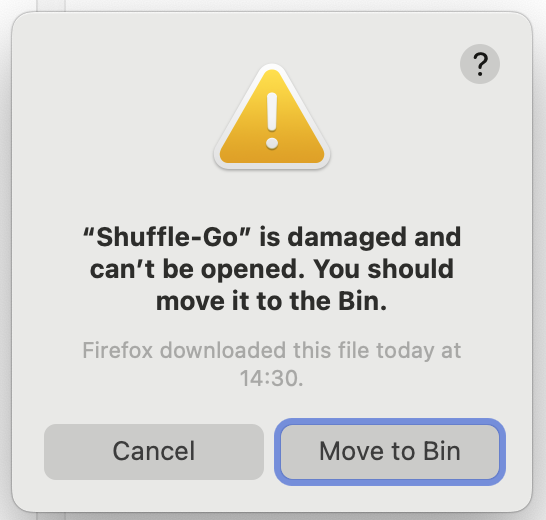
This appears when you double-click a .app that was downloaded from the internet and is not recognized by Apple. Despite the alarming wording, the app is not actually damaged. Keep reading.
Why does macOS block the app?
macOS includes a security system called Gatekeeper that checks whether an application has been reviewed and digitally signed by Apple. Apps distributed outside the Mac App Store must be signed with a paid Apple Developer certificate and submitted to Apple for notarization. Because most open-source and research tools skip this step (it costs $99/year and requires an Apple account), Gatekeeper may block them.
If you encounter a dialog like the one displayed above (and if you trust the software!)
-
If the application is provided as an
.appbundle:*- Right-click (or Control-click) the
.appfile. - Select Open from the contextual menu.
- A new dialog will appear — click Open again to confirm.
You only need to do this once. From then on, the app will open normally with a double-click.
- Right-click (or Control-click) the
-
If the application is a command-line tool (not a
.appbundle), the right-click trick does not apply. Instead, remove the quarantine attribute that macOS attached when you downloaded the file:xattr -d com.apple.quarantine ./retinotopyThen make sure the binary is executable and run it normally:
 chmod +x ./retinotopy
 ./retinotopy -s 0 -r 1
You only need to run
xattronce. If the file is inside a zip you extracted, run the command on the binary after extraction.
Dialog 2: “Apple can’t check app for malicious software”**
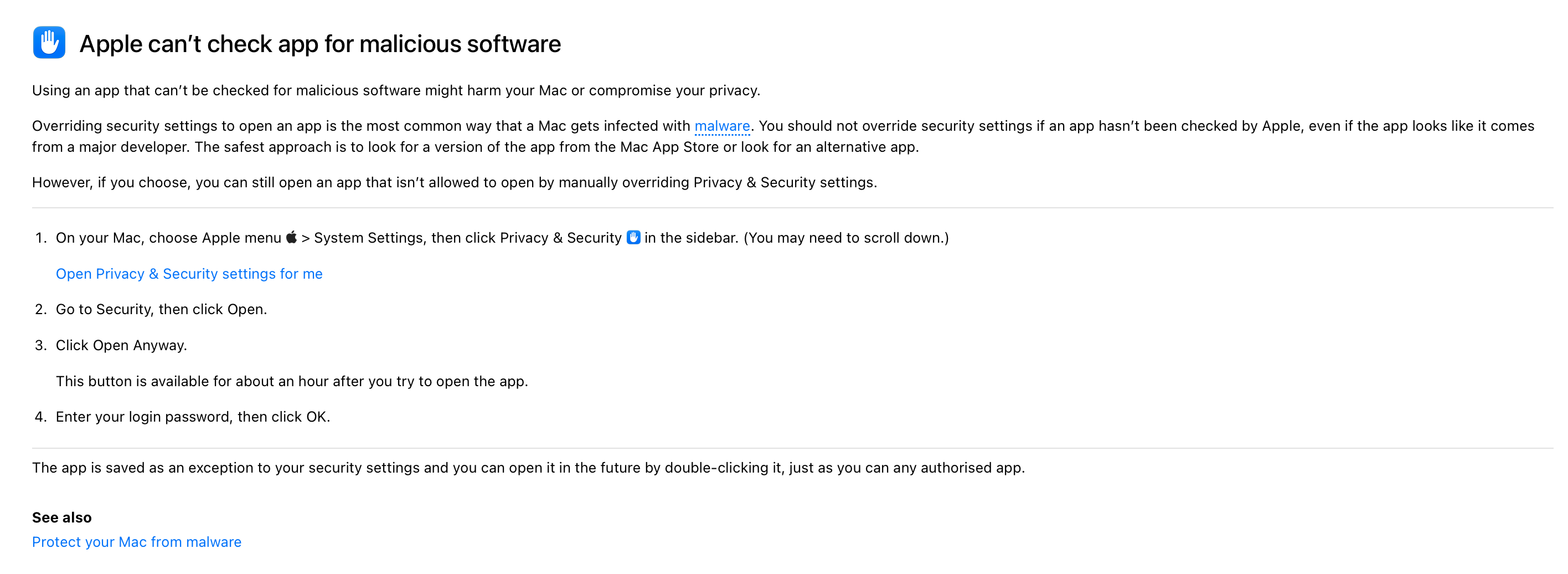
This dialog appears via System Settings > Privacy & Security after a blocked launch attempt. macOS offers you an “Open Anyway” button there.
To open it this way:
- Try to open the app (it will be blocked).
- Open System Settings → Privacy & Security.
- Scroll down — you will see a message about the blocked app with an “Open Anyway” button.
- Click Open Anyway and enter your password when prompted.
Again, you only need to do this once.
Summary
For graphical apps:
| Situation | Fix |
|---|---|
| “Damaged … move to Bin” after double-click | Right-click → Open → Open |
| Blocked via Privacy & Security dialog | System Settings → Privacy & Security → Open Anyway |
For Developers
Why the “damaged” error happens — and how to prevent it
When macOS downloads a file, it attaches an invisible quarantine attribute (com.apple.quarantine) to it. When the user tries to open it, Gatekeeper checks whether the app is signed and notarized by Apple. If it is not, Gatekeeper shows the “damaged” error.
There are three levels of signing:
| Level | Cost | User experience |
|---|---|---|
| Not signed | Free | “Damaged” error — very alarming, right-click workaround needed |
Ad-hoc signed (codesign -s -) |
Free | First-launch warning only — right-click workaround still needed, but no “damaged” message |
| Apple-notarized | $99/year Apple Developer account | No warnings at all |
For open-source projects, ad-hoc signing is a good middle ground: it eliminates the most alarming “damaged” dialog while costing nothing.
Packaging a .app bundle with ad-hoc signing
A macOS .app is just a folder with a specific structure:
MyApp.app/
├── Contents/
│   ├── Info.plist       ← metadata (bundle ID, version, icon name…)
│   ├── MacOS/
│   │   └── myapp        ← the compiled binary
│   └── Resources/
│       └── AppIcon.icns ← optional icon
Shell script
The script package-macos.sh (included in this repository) builds this structure from a compiled binary, ad-hoc signs it, and packages the result as a .zip ready for distribution. You can download it directly:
curl -O https://raw.githubusercontent.com/chrplr/note-about-macos-unsigned-apps/refs/heads/main/package-macos.sh
chmod +x package-macos.sh
#!/usr/bin/env bash
# package-macos.sh — build, sign and zip a macOS .app bundle
# Usage: bash package-macos.sh <binary> <AppName> <bundle-id> <version> [icon.icns]
#
# Example:
#   bash package-macos.sh ./myapp MyApp com.example.myapp 1.2.3 assets/icon.icns

set -euo pipefail

BINARY="$1"
APP_NAME="$2"         # e.g. MyApp  (the .app will be MyApp.app)
BUNDLE_ID="$3"        # e.g. com.example.myapp
VERSION="$4"          # e.g. 1.2.3
ICON="${5:-}"         # optional path to .icns file

APP_BUNDLE="${APP_NAME}.app"
ZIP_NAME="${APP_NAME}.zip"

echo "→ Creating ${APP_BUNDLE} ..."
rm -rf "${APP_BUNDLE}"
mkdir -p "${APP_BUNDLE}/Contents/MacOS"
mkdir -p "${APP_BUNDLE}/Contents/Resources"

# Copy binary
cp "${BINARY}" "${APP_BUNDLE}/Contents/MacOS/${APP_NAME}"
chmod +x "${APP_BUNDLE}/Contents/MacOS/${APP_NAME}"

# Copy icon (optional)
if [[ -n "${ICON}" && -f "${ICON}" ]]; then
  cp "${ICON}" "${APP_BUNDLE}/Contents/Resources/AppIcon.icns"
  ICON_KEY="<key>CFBundleIconFile</key><string>AppIcon</string>"
else
  ICON_KEY=""
fi

# Write Info.plist
cat > "${APP_BUNDLE}/Contents/Info.plist" <<EOF
<?xml version="1.0" encoding="UTF-8"?>
<!DOCTYPE plist PUBLIC "-//Apple//DTD PLIST 1.0//EN"
  "http://www.apple.com/DTDs/PropertyList-1.0.dtd">
<plist version="1.0">
<dict>
  <key>CFBundleExecutable</key>
  <string>${APP_NAME}</string>
  <key>CFBundleIdentifier</key>
  <string>${BUNDLE_ID}</string>
  <key>CFBundleName</key>
  <string>${APP_NAME}</string>
  <key>CFBundlePackageType</key>
  <string>APPL</string>
  <key>CFBundleShortVersionString</key>
  <string>${VERSION}</string>
  ${ICON_KEY}
</dict>
</plist>
EOF

echo "→ Ad-hoc signing ${APP_BUNDLE} ..."
# '-' means ad-hoc (no certificate). --deep signs nested binaries and frameworks too.
codesign --force --deep --sign - "${APP_BUNDLE}"

echo "→ Zipping into ${ZIP_NAME} ..."
zip -r "${ZIP_NAME}" "${APP_BUNDLE}"

echo "Done: ${ZIP_NAME}"
Using it in a GitHub Actions workflow
- name: Build macOS App Bundle (zip)
  runs-on: macos-latest
  steps:
    - uses: actions/checkout@v4
    - uses: actions/setup-go@v5
      with:
        go-version-file: go.mod

    - name: Compile
      run: GOOS=darwin GOARCH=arm64 CGO_ENABLED=0 go build -o myapp-arm64 ./cmd/myapp

    - name: Package and sign
      run: |
        bash package-macos.sh myapp-arm64 MyApp com.example.myapp $ assets/icon.icns
        mv MyApp.zip myapp-macos-arm64.zip

    - name: Upload artifact
      uses: actions/upload-artifact@v4
      with:
        name: macos-arm64
        path: myapp-macos-arm64.zip
Notes
codesign --deeprecurses into nested.frameworkand.dylibfiles. For a simple Go binary this makes no difference, but it is good practice.- Ad-hoc signing does not prevent the first-launch right-click workaround — it only removes the “damaged” error. For a fully seamless experience, you need a paid Apple Developer account and
xcrun notarytool. - Distribute as
.zip, not.dmg. A plain.zipavoids the extra “eject the disk image” confusion and lets users drag the.appwherever they want. - If your app also ships a CLI binary, you can sign it individually too:
codesign --force --sign - ./myapp-cli
xattr -d com.apple.quarantine ./myapp-cli   # if testing locally
For more information
Official Apple documentation on these topics:
- Gatekeeper and runtime protection in macOS — technical overview of how Gatekeeper verifies apps and blocks unsigned or unnotarized software.
- Safely open apps on your Mac — Apple Support article explaining the security checks and how to manage them.
- Open a Mac app from an unknown developer — step-by-step instructions for using “Open Anyway” to allow a blocked app.
- Notarizing macOS software before distribution — Apple Developer documentation on the notarization process and requirements for distributing apps outside the App Store.